Your AI dialer just ran 500 calls. If none of that shows up in HubSpot tomorrow, you've captured the speed and thrown away half the value.
AI dialer HubSpot integration — and the same for Salesforce and Pipedrive — is what turns raw call volume into pipeline intelligence. Without CRM sync, call outcomes sit in a separate system. Reps don't know what the AI cold calling covered, what objections came up, or who asked for a callback. You end up re-calling the same prospects with zero context. That's not a process problem. It's a data plumbing problem.

This guide covers the exact steps to connect TopCalls to each of the three most common B2B CRMs, what gets synced automatically on every call, and three automations worth building the same day you go live.
Key Takeaways
- TopCalls connects natively to HubSpot, Salesforce, and Pipedrive, and all three integrations are included on every plan with no add-on fee.
- Every completed call writes the outcome, a 2-3 sentence AI summary, duration, timestamp, and a 90-day recording link to the CRM record.
- The HubSpot connection runs on OAuth with no API token to manage or rotate, making it the smoothest of the three CRMs to set up.
- TopCalls pricing is $0.35 per minute, all-inclusive, with no per-seat fees and no extra charge for CRM sync.
- Teams on other CRMs such as Close or Zoho can connect through native integrations and 5,000+ apps via Zapier, or the REST API with webhooks.
- An automation that tags a contact Do Not Call after three not-interested outcomes cuts TCPA exposure without manual review.
1. Why CRM Integration Is the Missing Half of AI Dialing
Running AI calls without CRM sync is like sending emails without saving the sent folder. You did the work. You just have no record of it.
The real cost isn't admin time — it's the follow-up failure. Your AI agent called 800 prospects in a day. Forty of them said "yes, send me more info" or "call me back Thursday." If those outcomes don't write to your CRM automatically, they depend on someone reading a report and manually creating tasks. Some get done. Most don't.
With AI calling integrated with your CRM, every completed call creates or updates a contact record, logs the outcome, and triggers automations before your human reps ever look at the queue. They open HubSpot and see "interested, asked about Salesforce connector, follow up Monday." That's a warm handoff. Without integration, they're starting cold on a lead who already had a 3-minute conversation with your AI.
2. How to Connect TopCalls to HubSpot
HubSpot is the most common setup, and it's the smoothest to connect. The whole thing runs on OAuth — no API token to manage or rotate.
Step 1: In your TopCalls dashboard, go to Settings → Integrations. Select HubSpot. Step 2: Click "Connect" and complete the OAuth flow. TopCalls requests read/write access to contacts, deals, and timeline events.
Step 3: Map your lead list fields to HubSpot contact properties. Phone and email auto-map. Custom fields — company size, industry, lead score — need manual mapping. It takes about 5 minutes. Step 4: Set your sync rules. Decide which call outcomes write back to HubSpot, whether to create new contacts for unmatched phone numbers, and how to handle duplicates (merge vs. create new).
After setup, every completed call logs a HubSpot timeline event with the call outcome, a 2-3 sentence AI-generated summary, call duration, timestamp, and a link to the recording if you have recording enabled. Your reps see the full picture before they make contact.
If you're running high volume — think 1,000+ AI calls per day — HubSpot's sync handles it well. The rate limits only kick in above 10,000 API calls/hour, which you'd rarely hit with standard campaign sizes.
3. Salesforce Integration Setup
Salesforce takes a few more steps because it uses their Connected Apps framework. You'll need Salesforce admin access to complete the setup.
Step 1: In TopCalls, go to Settings → Integrations → Salesforce. Click "Connect." Step 2: TopCalls redirects to the Salesforce OAuth screen. Approve the permission request — it asks for contacts read/write and task creation access.
Step 3: Back in TopCalls, map your lead fields to Salesforce object fields. Standard mapping: Phone → Phone, FirstName → FirstName. You can also map to custom fields on Lead or Contact objects if you're using custom pipeline stages or scoring fields.
Step 4: Choose the call log format. Most teams use "Log a Call" activity type for CRM compliance. You can also create Tasks — useful if your workflow requires reps to review and close each call log. Step 5: Configure outcome-based field updates. When an AI call ends with outcome "interested," TopCalls can automatically update Lead Status from "Open" to "Working." One less step for your reps.
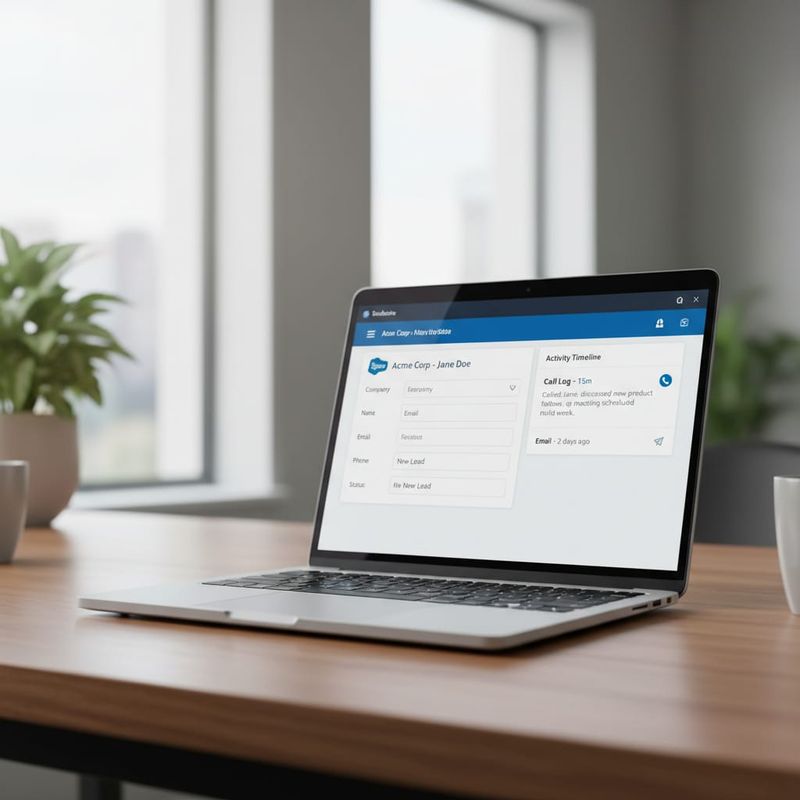
One caveat for high-volume campaigns: Salesforce's API governor limits can throttle real-time sync above 1,000+ calls per day. If you're seeing sync delays, switch to batch mode (every 5 minutes) in the TopCalls integration config. Batch sync is more stable than real-time at scale and barely noticeable in practice.
4. Pipedrive Integration Setup
Pipedrive is the quickest of the three to connect. Their API is clean, and the TopCalls connector is native. No OAuth flow — just an API token.
Step 1: Go to Settings → Integrations → Pipedrive in your TopCalls dashboard. Step 2: Open Pipedrive → Personal Preferences → API and copy your API token. Paste it into TopCalls and hit Save.
Step 3: Map your contact fields. Pipedrive uses Persons (contacts) and Deals as separate objects. TopCalls can log calls against either or both, depending on where your team tracks pipeline. Step 4: Choose your activity format. TopCalls creates a Pipedrive Activity with type "Call," including outcome notes and duration. These show up in the Person's timeline immediately.
Step 5: Set up deal creation rules. If a prospect responds positively — outcome: "interested" or "callback requested" — TopCalls can automatically create a new Deal in Pipedrive linked to the Person. Your sales manager sees the pipeline fill without anyone touching the CRM manually.
One thing Pipedrive does better than the others: the activity timeline is front-and-center in every contact view. Reps see the full AI call history immediately. No digging into custom fields or sub-panels — it's just there.
5. What Syncs on Every Completed Call
Regardless of which CRM you use, every completed AI call writes the same core fields:
Call Outcome: Interested, Not Interested, Callback Requested, DNC, No Answer, or Voicemail Left. Maps to a custom field or tag in your CRM.
Call Summary: A 2-3 sentence AI-generated summary of the conversation — what the prospect said, what they asked about, what objection came up. Saves 2-3 minutes of manual note-writing per call.
Duration: Total talk time in seconds. Useful for filtering out hang-ups under 10 seconds that inflate your "connected" numbers.
Timestamp: UTC call start time, auto-converted to your CRM's local timezone.
Recording Link: Signed URL to the call audio, accessible directly from the CRM record. Available for 90 days.

Contact Field Updates: Any data the AI collected during the call — email confirmed, company name, budget range — writes back to the contact. No manual entry required.
6. Three CRM Automations Worth Building First
CRM integration gives you the data. Automations are what actually close the loop. Three worth setting up the same day you go live:
Interested → Enroll in Follow-Up Sequence. When a call ends with "interested," trigger a HubSpot workflow (or Salesforce flow) to enroll the contact in a 3-email sequence and assign a rep task for day 3. The AI does the cold work; your rep handles the warm conversation. This is the core of follow-up automation at scale.
Callback Requested → Create Calendar Task. If a prospect asks for a callback at a specific time, TopCalls logs the requested time as a note. Build a CRM automation that creates a task with that due date and assigns it to the rep who owns the territory. Eliminates missed callbacks almost entirely.
3× Not Interested → DNC Tag. After three "not interested" outcomes from the same number, trigger a CRM workflow to tag the contact as Do Not Call and remove them from all active lists. This cuts TCPA exposure and reduces list fatigue without any manual review.
Want to see how many leads you're losing to slow follow-up right now? Run the ROI calculator — it shows cost per lead based on your current connect rate and response time.
7. Where Integration Won't Fix Your Problem
CRM sync fixes the data problem. It doesn't fix the outreach problem.
If your AI script is underperforming, or your lead list is 18 months old, syncing to Salesforce just makes the failure visible faster. You'll see "3,000 calls, 3% interested" written cleanly in your CRM dashboard. The integration is working. The campaign isn't. Check your AI cold call script before assuming the CRM connection is the issue.
High-ticket enterprise deals with 6+ stakeholders and multi-quarter buying cycles don't belong in AI dialing at all — integrated or not. A $500K contract with a Fortune 500 procurement team needs human relationship work. AI calling fits the volume game: mid-market, SMB, and quick-turn lead follow-up. If your average deal is above $100K with a procurement committee involved, use AI for initial qualification and warm handoffs, not as the primary outreach motion.
For everything else — the deals under $50K, the inbound leads sitting more than 5 minutes in your queue, the dormant accounts you want to reactivate — AI voice agents with CRM sync are almost certainly worth it. If you're still evaluating platforms, the best AI cold calling software comparison breaks down cost per meeting across the top tools.
8. Get Started With a Strategy Call
TopCalls connects to HubSpot, Salesforce, and Pipedrive natively. All three integrations are included from day one, with no add-on fees. You can have your first AI campaign running and syncing to your CRM the same day.
If you're on a different CRM — Close, Zoho, Freshsales, ActiveCampaign — you can connect through Zapier (5,000+ apps) or the REST API with webhook support. Basically anything with an API endpoint works. And if you're comparing platforms first, the pricing breakdown in
The Vapi vs. Retell vs. TopCalls cost comparison shows what 10,000 calls actually costs across platforms. TopCalls is $0.35/minute, all-inclusive — no per-seat fees, no add-ons for CRM sync.
If you want help planning the integration alongside your existing outbound process, book a strategy call with the team. We've set this up with hundreds of sales teams accelerating outbound volume and know where the edge cases are.
Frequently Asked Questions
Get AI calling tips in your inbox
No spam. One email per week with actionable sales automation tips.