Your prospect said yes on the call. Then you sent a Calendly link. Three days passed. They didn't book.
That gap between a verbal yes and a booked meeting is where deals go quiet. An AI voice agent with live calendar integration closes that gap during the call itself. The agent books the meeting before the caller hangs up, sends a confirmation immediately, and kicks off a reminder sequence automatically.
This guide walks through how the AI calling Calendly integration works inside Topcalls, how to set up Cal.com booking, how double-booking prevention keeps your calendar clean, and which platforms the integration supports.
Key Takeaways

- Topcalls connects natively to Calendly, Cal.com, and Google Calendar, the agent reads live availability and books the meeting during the call, with no link sent to the prospect.
- Double-booking is prevented by a real-time calendar availability check at the moment of confirmation, the same pattern ticketing platforms use.
- Native confirmation emails and calendar invites fire automatically from Calendly or Cal.com the moment a booking is written, no manual step from your team.
- Full setup takes under 15 minutes: authenticate your calendar, map an event type, configure the booking prompt, and run a test call.
- Any scheduling tool not on the native list, Outlook, HubSpot Meetings, Acuity, and more, connects through Zapier's 5,000+ app integrations.
1. How Do You Connect AI Calling to Calendly?
Connecting AI calling to Calendly takes three steps: authenticate Calendly through your AI platform's integrations panel, select the event type the agent should book, and set a booking instruction in the campaign prompt. Once connected, the agent checks Calendly's live availability mid-call, proposes open slots verbally, and writes the booking directly to Calendly's calendar, all before the call ends. Setup takes under 15 minutes from authentication to the first live booking.
Here's the step-by-step inside Topcalls:
- Authenticate Calendly: In the Topcalls dashboard, go to Settings > Integrations, select Calendly, and click Connect. You'll authorize which Calendly account and event types the agent can access. This is a standard OAuth flow, takes about 90 seconds.
- Map your event type: Pick the Calendly event the agent should book, a 15-minute intro call, a 30-minute demo, a discovery session. The agent only ever offers the event type you map. If you have multiple Calendly event types, you can assign different ones to different campaigns.
- Set the booking instruction: In your campaign prompt, add a clear instruction: "When the prospect agrees to a meeting, check available slots and book before ending the call." The agent reads this at runtime and handles the booking flow automatically when a prospect says yes.
- Run a test call: Call your own number, agree to a meeting when the agent asks, and watch the booking appear in your Calendly event list in real time. If it shows up, you're live.
Because Topcalls talks directly to Calendly's API rather than scraping a web interface, availability checks happen in real time and bookings write instantly. There's no polling delay, no stale availability windows, and no gap where a slot could fill after you display it.
One thing to configure before going live: your agent needs to disclose that it's an AI at the start of the call, including when booking a meeting. State-level AI disclosure requirements vary, see our AI disclosure laws guide for the state-by-state breakdown.
2. Can an AI Voice Agent Book Directly on Cal.com?
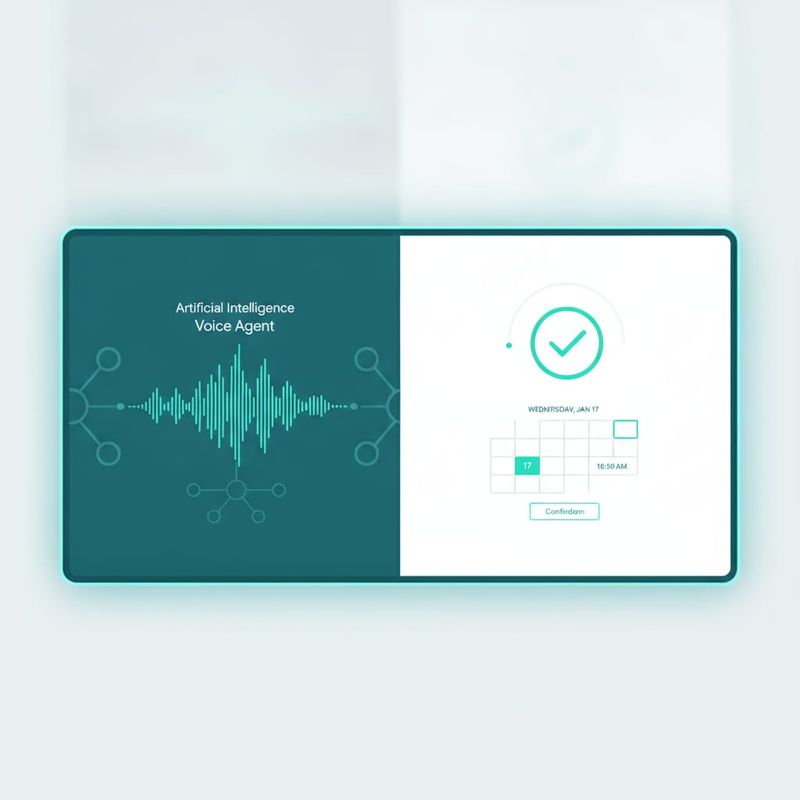
Yes. Cal.com's open-source scheduling API makes it one of the cleanest integrations for AI voice platforms. The agent reads available slots from your Cal.com event type, confirms the caller's preferred time verbally, and writes the booking to Cal.com's database during the live call. From the caller's experience, it's identical to booking with Calendly, the AI appointment setting flow is invisible to them.
Here's what a Cal.com booking looks like on a live call. The agent reaches a prospect, they agree to a 30-minute demo, and the agent says: "I have Wednesday at 10am or Thursday at 2pm, which works for you?" The prospect picks Thursday. The agent confirms: "Locked in. You'll get a calendar invite shortly." The booking appears in Cal.com's event list within two seconds, and the invite lands in the prospect's inbox before they've put the phone down.
Teams often choose Cal.com over Calendly for high-volume outbound because Cal.com has no per-seat fees, it scales to unlimited team members on its free tier for basic booking. If you're running campaigns that book 200+ meetings a month, the difference compounds quickly.
Cal.com setup in Topcalls mirrors the Calendly flow: go to Settings > Integrations, select Cal.com, paste your API key from the Cal.com developer settings, pick your event type, and write the booking prompt. No webhook configuration needed on your end, Topcalls handles the API calls.
3. How Does the Agent Avoid Double-Booking?
The agent queries real-time calendar availability from your connected platform before it offers any time slot. Only genuinely open slots are presented. At the moment of confirmation, it runs a final availability check and locks the slot through the calendar API, if the slot filled in the meantime, the agent skips it and proposes the next open time without missing a beat. The caller never knows a conflict happened.
This is the same optimistic-locking pattern that concert ticketing platforms use. The slot isn't held mid-conversation, it's reserved only at the moment of write, after a final availability check. Calendly and Cal.com both support this atomic write-and-verify pattern in their APIs, so the logic works natively without any workarounds.
At scale, this matters more than it sounds. Topcalls processes 63,000+ AI calls per day across its customer base. If a campaign is dialing 400 numbers simultaneously and 60 of them say yes in the same window, without real-time locking those 60 conversations would compete for the same calendar slots. Real-time API calls prevent every collision automatically.
One caveat worth knowing: if your human reps manually book into the same Calendly or Cal.com calendar outside of those platforms' own interfaces, say, by editing a Google Calendar event directly, the API doesn't see that booking until the calendar syncs. To keep availability accurate, route all bookings through Calendly or Cal.com's interface and let the API be your single source of truth for what's open.
4. How Do You Send Confirmation and Reminders?
Confirmation messages fire automatically the moment the booking writes to the calendar. Calendly and Cal.com both send a native email confirmation with a calendar invite (.ics file) to the invitee by default, no configuration needed. Reminder sequences typically run at 24 hours and 1 hour before the appointment. According to Calendly's own research on no-show reduction, automated reminders are the single most effective tactic for keeping a booked meeting on the calendar.

There are three confirmation layers you can set up:
- In-call verbal confirmation: The agent reads the booked time back to the caller before hanging up. Something like: "You're confirmed for Thursday, April 29th at 2:00pm Eastern. Check your inbox for the invite." This creates an immediate, spoken record of the booking.
- Native calendar confirmation: Calendly or Cal.com sends an email confirmation with a calendar invite automatically. The invitee can add it to any calendar app directly from the email. This is on by default, you don't need to configure it.
- Reminder sequence: Calendly's workflow builder lets you add email and SMS reminders at custom intervals, 24 hours before, 1 hour before, or a custom window you set. Cal.com supports reminder notifications through its event type settings. For SMS outside Cal.com's native capabilities, route the booking event through Zapier to your SMS platform.
Both platforms also include a reschedule link in the confirmation email. If a prospect needs to move the meeting, they can do it themselves without involving your team. That alone cuts a meaningful amount of scheduling back-and-forth.
Want to know how many meetings you'd book per month with AI calling? Run our ROI calculator to get a number based on your list size and connect rate.
5. What Calendars Does AI Calling Support?
Topcalls supports Google Calendar, Calendly, and Cal.com natively. Any scheduling tool not on the native list, including Outlook, Microsoft 365, HubSpot Meetings, and Acuity, connects through Zapier's 5,000+ app integrations. The full list lives on the Topcalls integrations page.
| Calendar | Connection Type | Real-Time Availability | Best For |
|---|---|---|---|
| Google Calendar | Native | Yes | Teams on Google Workspace |
| Calendly | Native API | Yes | Sales teams with existing Calendly setup |
| Cal.com | Native API | Yes | Teams wanting open-source or self-hosted scheduling |
| Outlook / Microsoft 365 | Via Zapier | Yes (Zapier-synced) | Enterprise teams on Microsoft stack |
| HubSpot Meetings | Via Zapier | Yes (Zapier-synced) | Teams using HubSpot CRM as their source of truth |
For Zapier-connected calendars, the flow works like this: the AI agent fires a Zapier trigger when a prospect confirms a meeting, Zapier writes the booking to whichever tool you've connected, and the calendar confirmation goes out from there. The Zapier step adds roughly 100-200ms of latency on the booking, which is imperceptible on a call where the agent is still wrapping up the conversation.
Which calendar should you use? If your reps already have Calendly event types set up, don't change a thing, connect Topcalls to your existing Calendly account. If you're starting from scratch or want to avoid per-seat fees at scale, Cal.com is free for basic booking and has no seat limit. Google Calendar works well when you don't need a dedicated scheduling tool and just want the agent to book into a shared team calendar.
Worth noting: calendar integration works best alongside a solid call-connect strategy. If your calls aren't reaching prospects in the first place, there's nothing to book. See our guide on cutting call abandonment rates for the setup that maximizes your connect rate before you focus on booking volume.
Where AI Calendar Booking Doesn't Work Well
AI calendar booking is built for straightforward bookings where the meeting type is pre-determined. It doesn't handle complex routing decisions well. If a prospect's answers during the call should determine whether they get a 30-minute demo or a 60-minute strategy session with a senior rep, and that decision requires human judgment, keep a human in the loop for the booking step.
It also won't work if your calendar doesn't have structured event types set up. A shared team Google Calendar with no event type defined gives the agent nothing to book into. Configure at least one event type before connecting.
For high-touch enterprise deals where the right meeting depends on a nuanced qualification the agent can't make on its own, use the AI to warm the lead and qualify the intent, then hand off to a human who closes the calendar. AI as qualifier plus human as closer tends to outperform either alone on complex deals.
Set It Up in 15 Minutes
Connecting your AI calling campaigns to Calendly or Cal.com takes under 15 minutes. After that, every call your agent makes can end with a confirmed meeting, no follow-up links, no waiting on the prospect to self-schedule, no drop-off between the verbal yes and the calendar invite.
If you want to see it in action, a live call, your calendar, a real booking, book a strategy call with our team. We'll run a test call against your Calendly or Cal.com account and show you the booking appear in real time.
Frequently Asked Questions
Get AI calling tips in your inbox
No spam. One email per week with actionable sales automation tips.